🏁 Getting started
Setting up the app, picking your nation and understanding the basics.
How do I pick my nation?▼
When you first open WC26: The Journey you go straight to the nation picker. All 48 qualified nations are shown as a grid of flags — search by name or scroll to find yours, then tap to select. The entire app immediately themes to your nation's colours.
Can I change my nation later?▼
Yes — go to Settings → Your Nation → Change nation at any time. Changing nation resets the app theme, fixtures, squad and news feed to the new team.
Does the app need an internet connection?▼
Yes for live scores and news. Your nation preference, saved lineup and recently loaded squad are available offline. If you lose connection you'll see the most recently cached data.
Is the app free?▼
Yes — free to download on iOS and Android. The app is ad-supported. A one-time £1.99 purchase removes all ads permanently. No subscription, no recurring charge.
What are the five tabs?▼
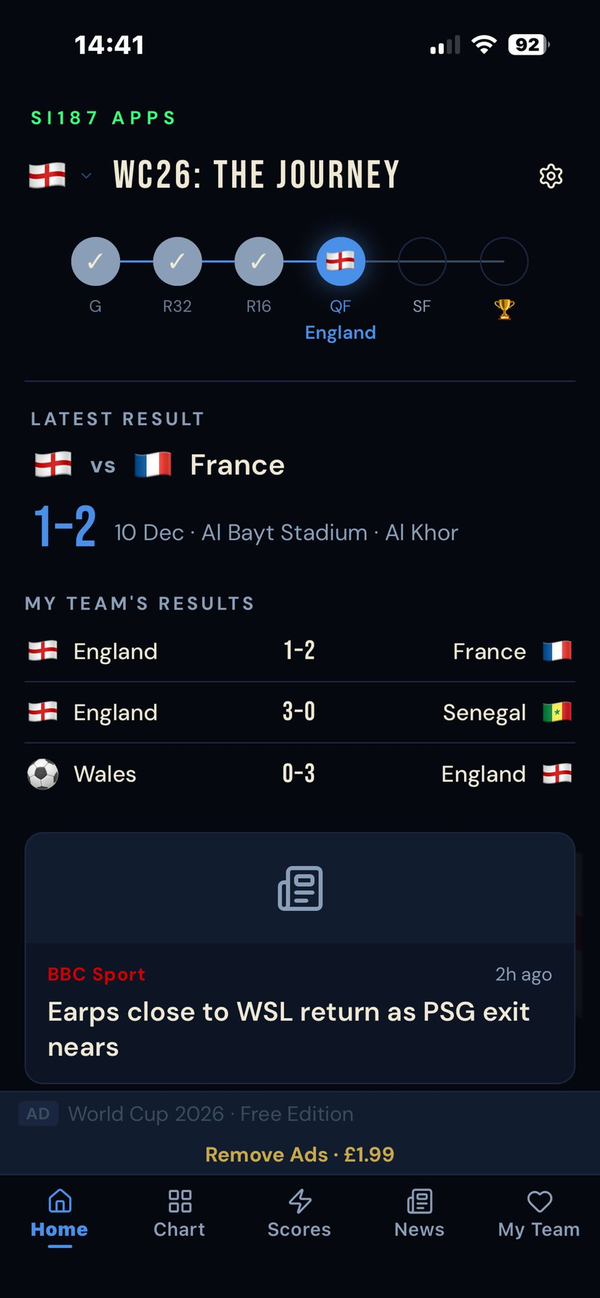
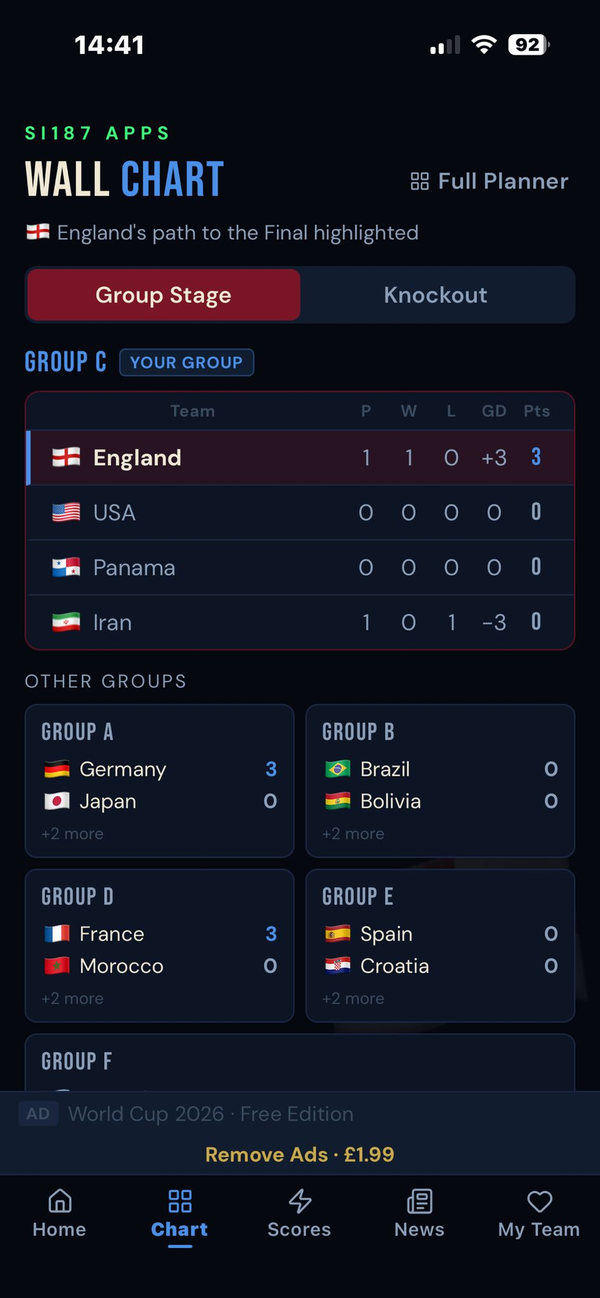
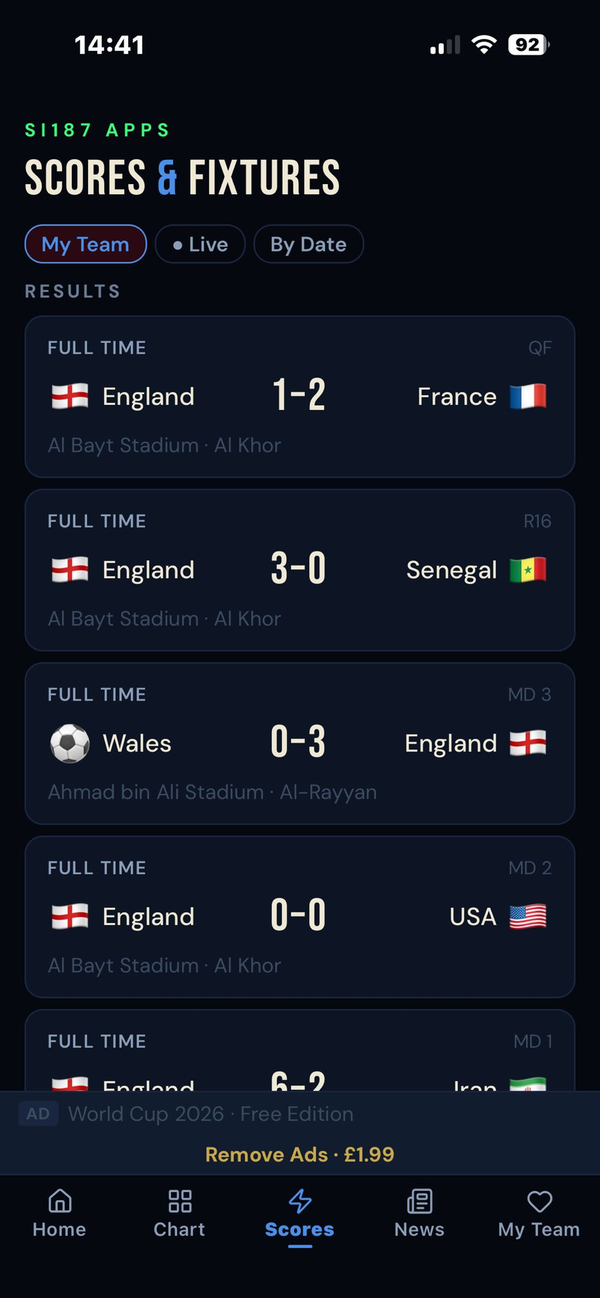
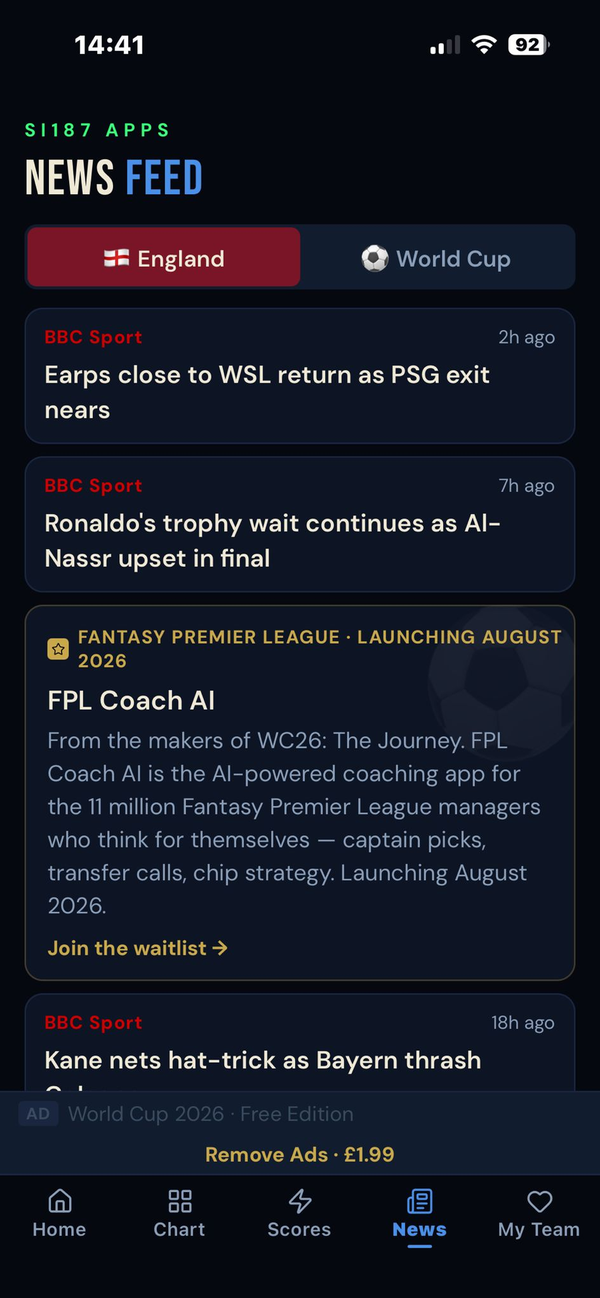
Bottom navigation: Home (your hub and Journey Tracker), Wall Chart (group tables and knockout bracket), Scores (all 104 WC 2026 matches), News (curated RSS feed) and My Team (squad, fixtures and lineup builder).
⚡ Live scores
How match data works across all 104 WC 2026 fixtures.
How often do scores update?▼
Scores refresh automatically every 5 minutes. When a match is live a persistent pulsing bar appears across the top of every screen — tap it to jump to the Match Centre.
A match has kicked off but still shows as upcoming — why?▼
There can be up to a 5-minute delay before the live status registers. Pull down to refresh the Scores screen to force an immediate update.
How do I see all matches, not just my team's?▼
In the Scores tab, tap By Date to see every WC 2026 match for any selected date. My Team (default) shows only your nation's fixtures. Live shows only matches in progress.
What does the Match Centre show?▼
Tap any match card — score, venue, group, goal scorers, key events (goals, cards, substitutions) and possession and shots stats. Data populates live as the match progresses.
🔔 Notifications
Goal alerts, kick-off reminders and how to manage them.
How do I enable goal alerts?▼
During onboarding you're prompted to allow notifications. If you skipped this, go to Settings → Notifications, toggle Goals on, and confirm notifications are enabled for WC26 in your phone's Settings app.
I'm not receiving notifications — what should I check?▼
1. Settings → Notifications — confirm the relevant toggles are on. 2. Your phone's Settings → WC26 → Notifications — confirm they're allowed. 3. Do Not Disturb or Focus mode isn't blocking the app.
Can I choose which alerts I receive?▼
Yes — in Settings → Notifications toggle independently: Goals, Kick-off reminders (5 minutes before), Full time alerts and Breaking news about your nation.
👥 Squad & lineups
Player profiles, the lineup builder and sharing your predicted XI.
Where do I find my nation's squad?▼
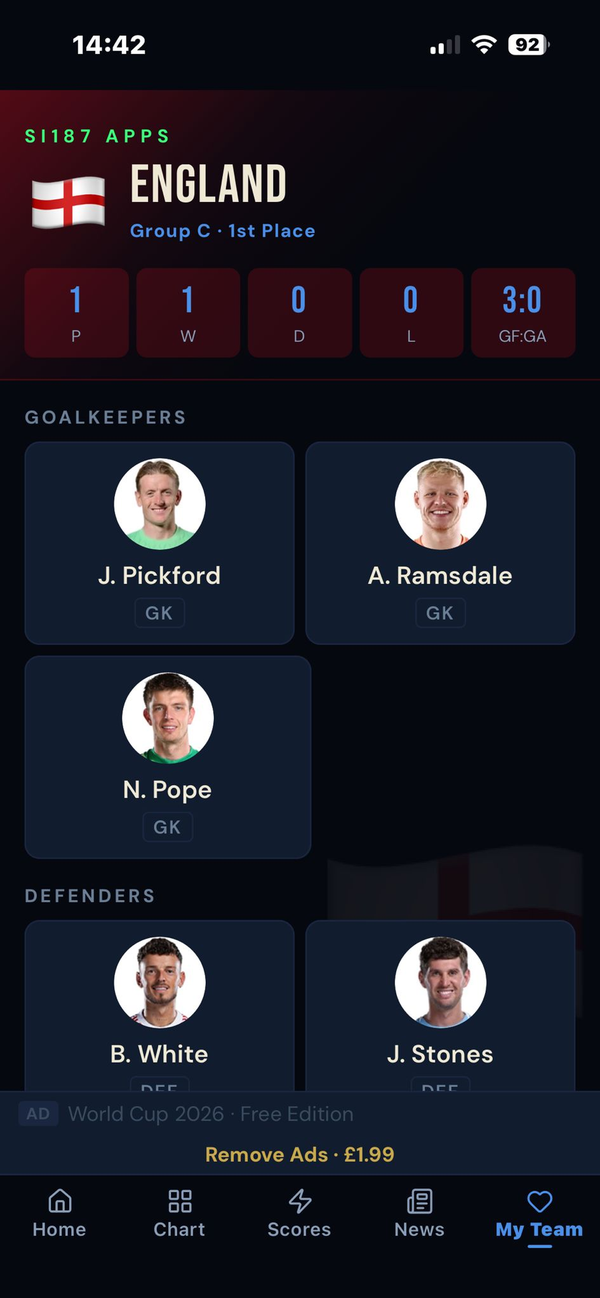
Go to the My Team tab and scroll to the squad grid. Players are grouped by position — tap any player to open their profile with tournament stats.
Why are some players showing initials instead of photos?▼
Official player photos are sourced from our data provider. For some nations, photo data isn't yet available — initials avatars show as placeholders until real squad data is confirmed ahead of the tournament.
How do I build and share my predicted lineup?▼
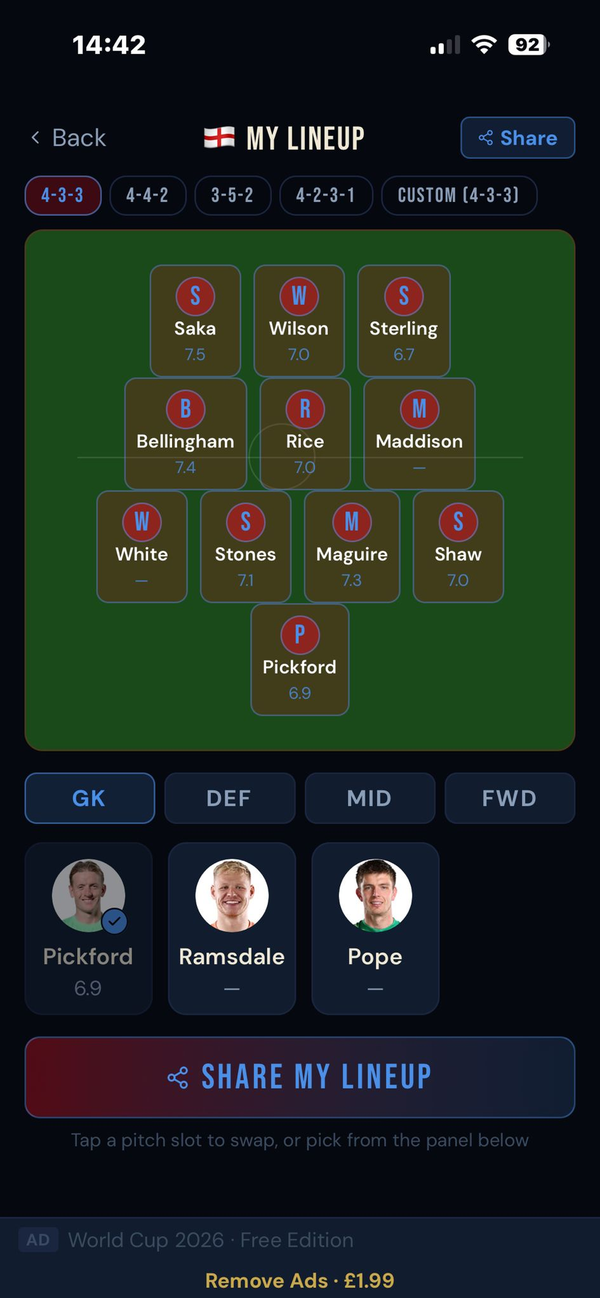
Go to My Team → Build & Share Your Lineup. Pick your formation using the chips at the top, then tap positions to select players from the squad panel. Tap Share My Lineup to export a branded card to WhatsApp, Instagram, X and more.
Can I use a custom formation?▼
Yes — tap Custom in the formation selector and use the + and − steppers to set your own DEF / MID / FWD split. The total must be 10 outfield players.
📋 Wall chart
The bracket, group tables and your nation's path to the Final.
What is the Journey Tracker?▼
The Journey Tracker on the home screen shows your nation's path — six nodes from Group stage through to the 🏆 Final. Your current stage glows in your nation's colours and updates automatically as results come in.
Where do I see the full tournament bracket?▼
Tap the Wall Chart tab for all 12 group tables and the knockout bracket. Tap View Full Wall Chart on the home screen to open the full-tournament wall planner in one view.
When do knockout brackets fill in?▼
Knockout slots show seeded labels (e.g. 1A vs 2B) until group results are confirmed, then automatically switch to the actual team names as each round is settled.
📅 Calendar sync
Adding your team's fixtures to your phone calendar.
How do I add fixtures to my calendar?▼
Go to My Team → Add all fixtures to Calendar. The app requests calendar permission if needed then adds all your team's remaining matches in one tap — with venue, kick-off time and a 1-hour alert. Events go to your default calendar.
The kick-off times look wrong — what timezone?▼
All times are shown in your local timezone, converted automatically from UTC. If times appear wrong, check your phone's timezone setting.
I can't find the fixtures in my calendar.▼
Events are added to your default calendar. Search for your nation name — events are titled with your team's flag emoji and name.
🌍 Follow another team
What happens when your nation is knocked out of the tournament.
My team has been knocked out — what happens?▼
The next time you open the app a full-screen prompt appears: "[Nation]'s journey is over. The tournament isn't." Pick any remaining nation to follow — the app fully switches to their theme, fixtures, squad and news.
I dismissed the prompt — how do I follow another team now?▼
Go to Settings → Your Nation → Change nation to switch to any nation still in the tournament.
My nation won the World Cup — what does the app show?▼
🏆 A full-screen champion celebration in your nation's colours. The Journey Tracker shows the complete path all the way to the Final.
🚫 Remove ads
The one-time £1.99 purchase and how to restore it.
How do I remove ads?▼
Go to Settings → Subscription → Remove Ads · £1.99. One-time purchase — pay once, ads gone permanently. No subscription.
I paid but ads are still showing.▼
Try Settings → Subscription → Restore Purchases. Ensure you're signed into the same App Store or Google Play account you used. If it persists contact us.
I've reinstalled — how do I restore Remove Ads?▼
Go to Settings → Subscription → Restore Purchases. Your purchase is linked to your App Store (iOS) or Google Play (Android) account — restore for free on any device.
⚙️ Settings
Appearance, privacy and account preferences.
How do I switch between light and dark mode?▼
Go to Settings → Appearance and toggle between Dark and Light. Dark is the default. Your nation's accent colours carry across both themes.
Is my data private?▼
The app collects anonymous usage analytics and an advertising ID where ads are showing. No name, email, location or personal information is collected. See our full Privacy Policy.
How do I request deletion of my data?▼
Email [email protected] with "Data deletion request" in the subject. We'll process it within 30 days.
Still need help?
We're a small independent studio and we read every message. Get in touch and we'll get back to you within 24–48 hours on working days.