How to import your own database
A step by step guide. It takes about 5 minutes and you do not need any technical knowledge.
Before you start: importing is optional. Retro Manager comes with a complete Classic World built in, so you can play straight away. Importing needs the Full Game. The bundle (£6.99) includes the Full Game and 1 import, and each extra import is £2.99, for example a new season's data. We do not provide, host or link to any data files. You bring your own.
Get your database file ready
Retro Manager imports a zip file of your own database folder. You need:
- A folder called Data that has a file named index.dat inside it.
- That folder made into a single .zip file, for example Data.zip.
Do not zip your saved games or a program folder. Only the Data folder works.
Make the zip on your computer
On a Mac, right click the Data folder and choose Compress.
On Windows, right click the Data folder and choose Send to, then Compressed (zipped) folder.
You now have a file called Data.zip. If you already have a zip of the Data folder, skip this step. A RAR file will not work, so make a zip.
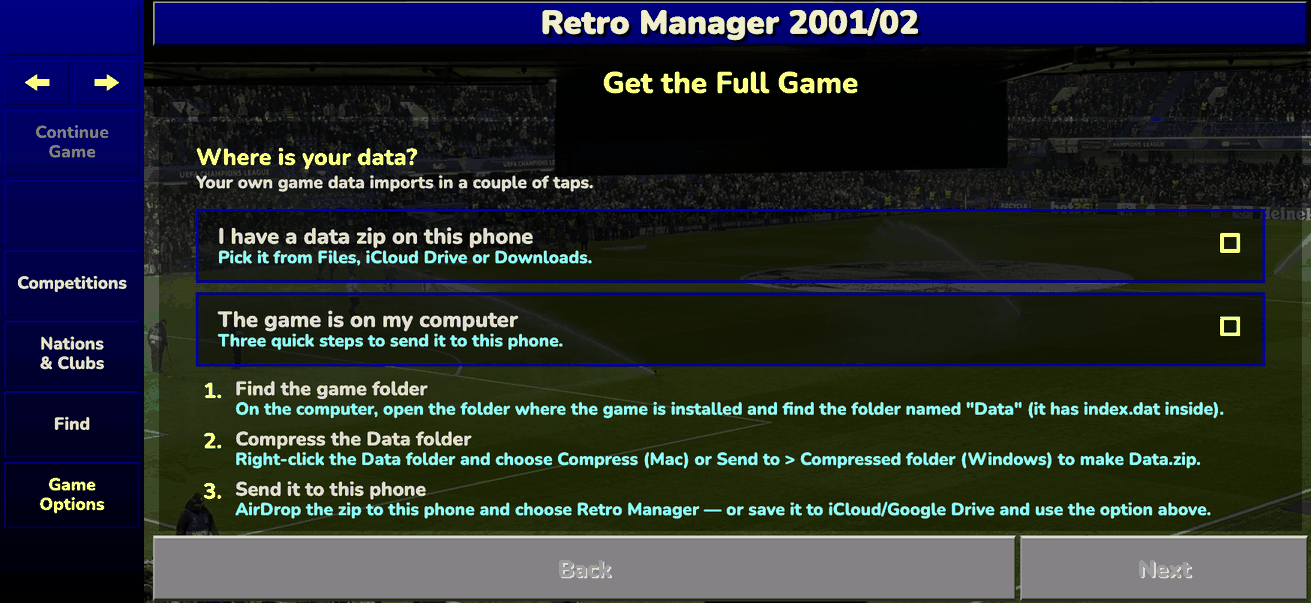
The app shows these same 3 steps if you tap The game is on my computer. Send the zip to your iPhone or iPad
Pick whichever is easiest:
- AirDrop: right click the zip, choose Share, then AirDrop, then your device. On your device, tap the file and choose Retro Manager, or Save to Files.
- iCloud Drive: drop the zip into iCloud Drive on your computer. It appears in the Files app on your device after a moment.
- Files app: if the zip is already on the device, it is in the Files app under Downloads or On My iPhone.
Or send it to your Android phone or tablet
Pick whichever is easiest:
- USB cable: connect the device and copy the zip into the Downloads folder.
- Google Drive: upload the zip on your computer, then open the Drive app on your device and download it. It lands in Downloads.
- Email or Nearby Share: send the zip to yourself and save the attachment to Downloads.
Open the import screen in Retro Manager
Open the app and start from the Select Club screen. Tap Change next to Database to open Select Database, then tap Import Game Data (or Import Another Database if you already have one). Importing needs the Full Game, so follow the prompts if the app asks you to get it or to buy an extra import (£2.99).
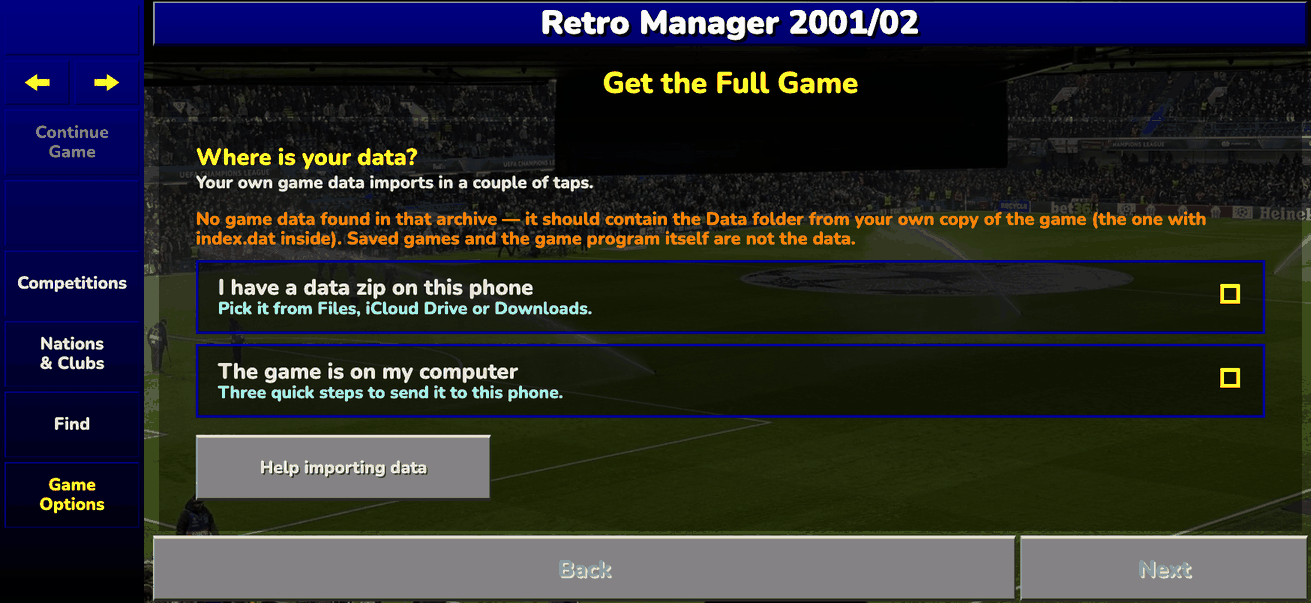
The Get the Full Game screen opens, titled Where is your data?
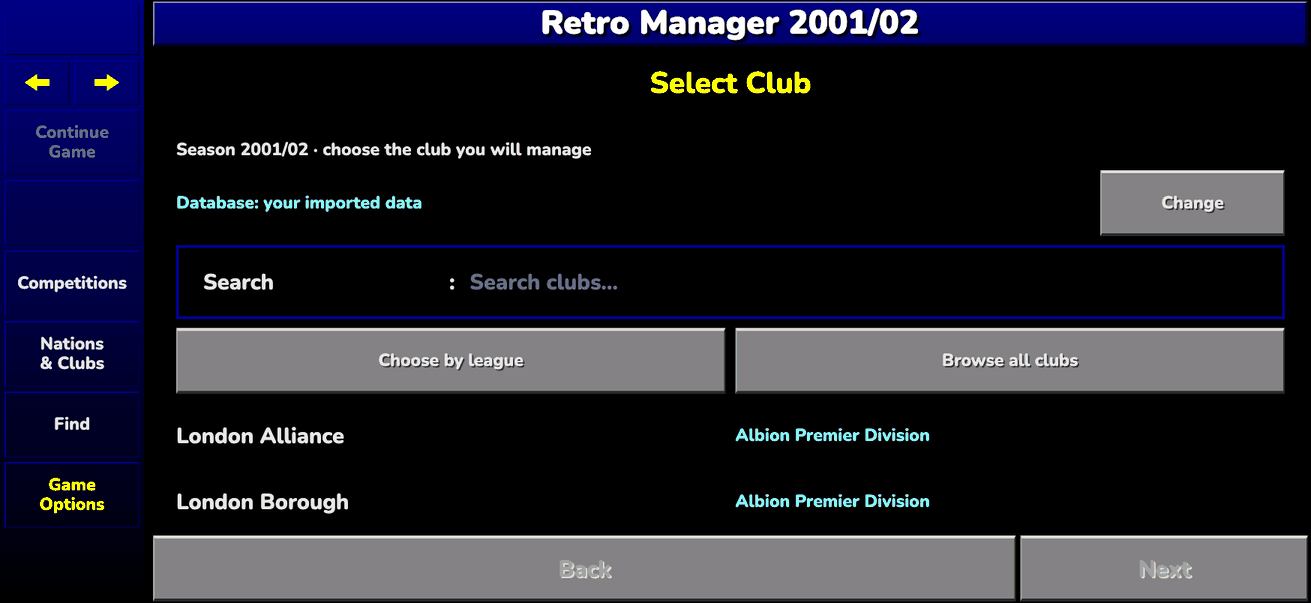
The Select Club screen. Tap Change next to Database. Choose your zip file
Tap I have a data zip on this phone. The app says Pick it from Files, iCloud Drive or Downloads. Your device's file picker opens.
Find your zip and tap it. On iPhone and iPad look in iCloud Drive, On My iPhone or Downloads. On Android open the menu and choose Downloads.
If your zip arrived by AirDrop or was shared straight to Retro Manager, the Databases screen shows A data file is waiting to import. Just tap Import.
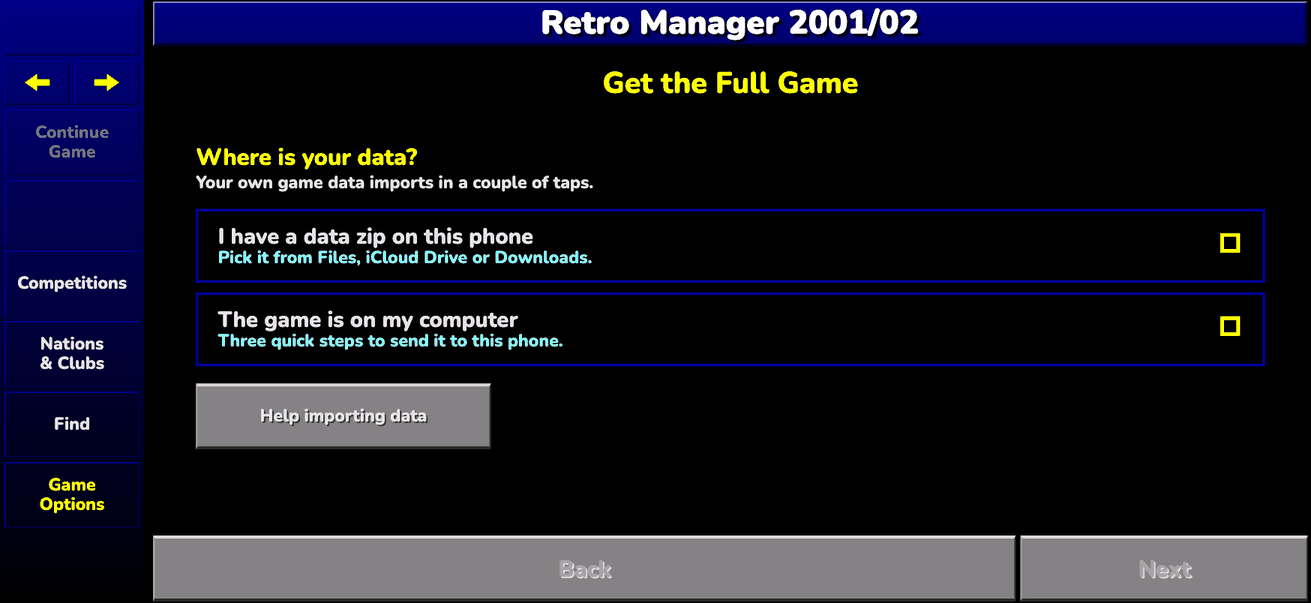
Tap I have a data zip on this phone. Wait while it imports
A spinner appears with Importing your game data. Large files can take a minute. Keep the app open and the screen on until it finishes.
Start your career
When it works you see Import Complete with the number of players and clubs, and Your database is ready. Tap Start Career.
Your imported database now appears under Select Database, where you can rename it, switch between databases, or delete one you no longer need.
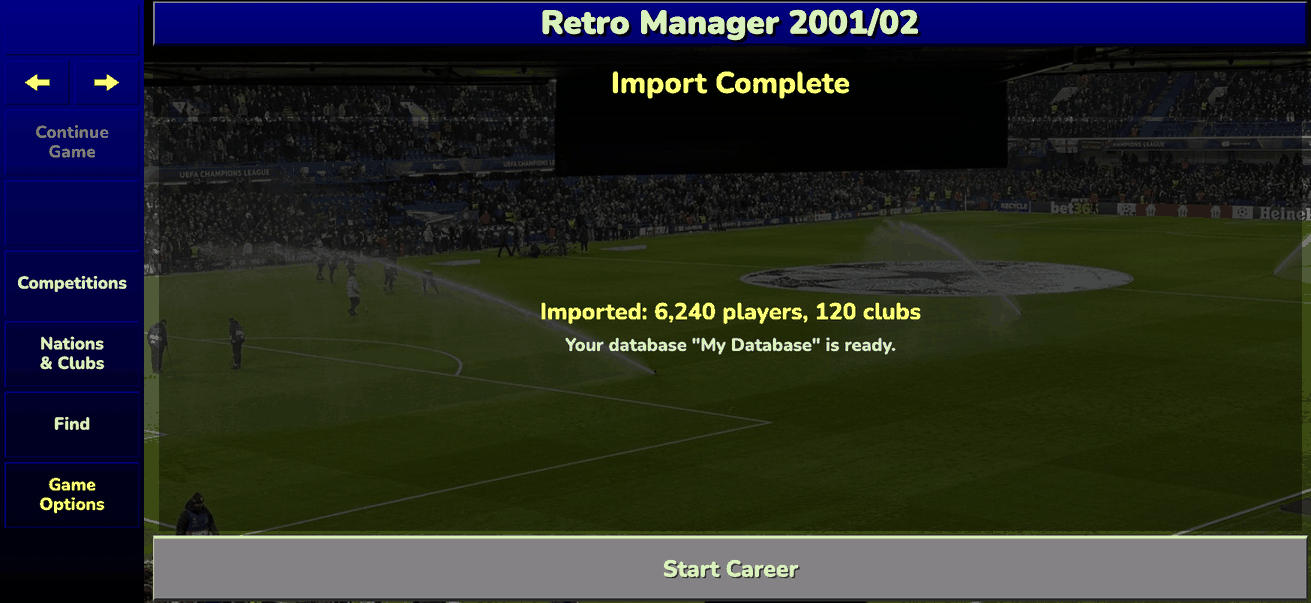
The Import Complete screen. This example shows made up numbers.
Something went wrong?
These are the messages the app shows when an import fails. Find yours below.
That doesn't look like game data.
You picked a file that is not a zip. Fix: zip the whole Data folder (the one with index.dat inside) and choose that zip.
That archive is a RAR.
The app cannot read RAR files. Fix: unzip the RAR on a computer, then compress the Data folder as a zip and send that instead.
That file could not be opened as a zip archive.
The zip is damaged or did not finish copying. Fix: make the zip again, send it again, and wait until it has fully arrived before you import.
No game data found in that archive.
The zip does not contain the Data folder. Saved games and program folders are not the data. Fix: zip the folder named Data that has index.dat inside. It does not matter if the zip has an extra folder around it.
The archive was read but the data inside is incomplete.
Some of the files in your Data folder are missing. Fix: zip the whole Data folder again, with every file in it.
Something went wrong reading that file. Try re-zipping your Data folder and importing again.
A catch all message. Fix: make a fresh zip of the Data folder, send it again, and make sure your device has free storage space.
That database could not be loaded.
An imported database has been damaged. Fix: on the Select Database screen delete it, then import the zip again.
The purchase has not cleared yet.
The store has not confirmed your payment. Fix: wait a few minutes with the app open. It unlocks automatically once the App Store or Google Play confirms it. You can also tap Restore Purchases.
Still stuck? Email [email protected] and tell us which message you see.